QuickBooks Desktop Payroll can email an existing pay stub as a password-protected PDF. Select the right statements, preview them, check each recipient and review the Send Forms queue before sending. Emailing a statement distributes payroll information; it does not itself process a paycheck or confirm that an employee has received wages.
This U.S. Desktop guide follows Intuit’s public documentation reviewed in November 2026. It covers direct PDF delivery, employee opening problems and the separate Workforce option. The examples are editorial checklists, not a private company file or a claim that email alone meets every state’s wage-statement delivery rules.
Email attachment or Workforce: which process are you using?
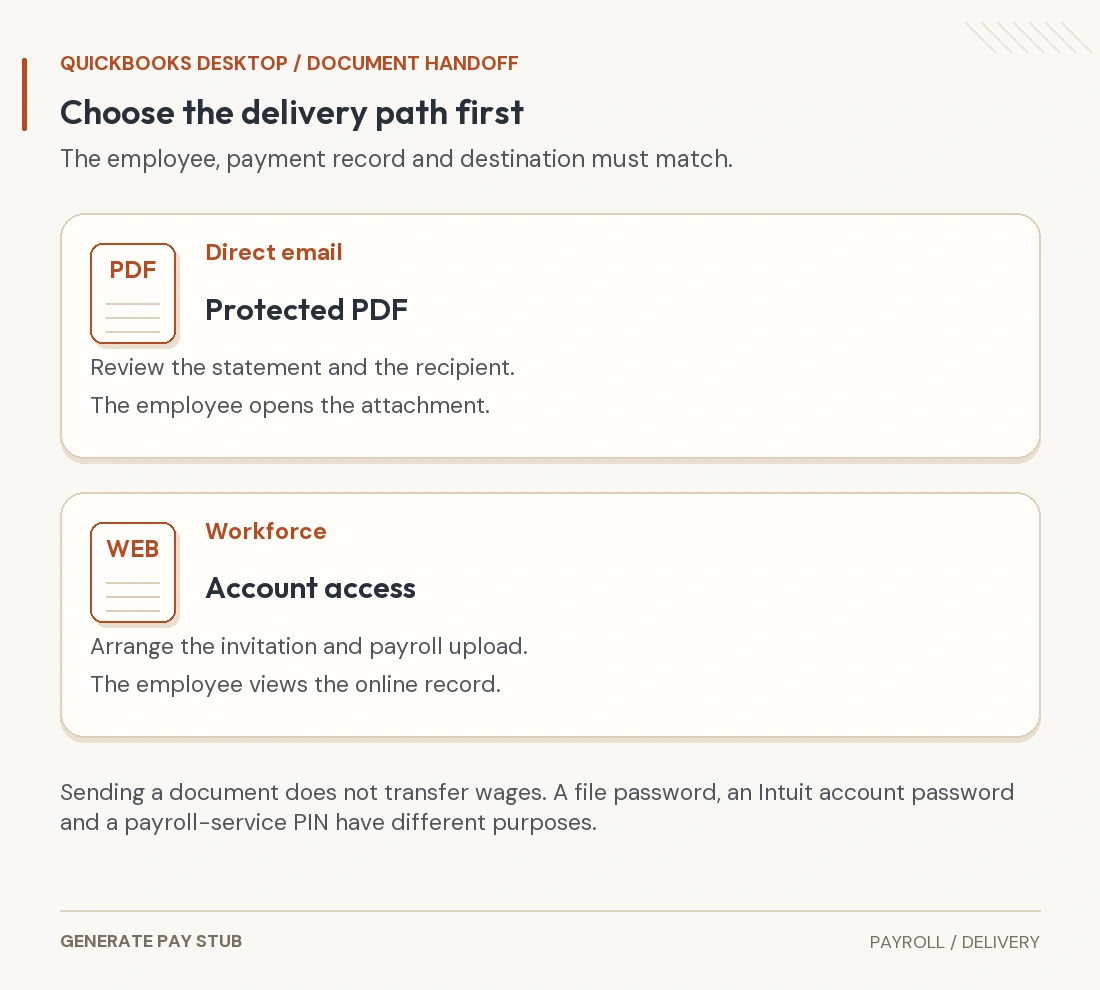
Direct email supplies a PDF to an employee’s address. Workforce gives the employee an account-based route to records after the employer has arranged access and sent the payroll data. The delivery methods should be identified before troubleshooting, because an invitation problem is different from an attachment-opening problem.
Intuit’s Desktop Workforce instructions describe invitation and paycheck-upload steps. A locally produced PDF and a successful portal upload are different events. Do not tell an employee that an attachment password will fix an account invitation that never arrived.

Set up the sending connection before a payroll batch
Use a supported QuickBooks Desktop release and the approved employer email account. Intuit’s email-connection guide documents Outlook and Web Mail setup through Edit, Preferences and Send Forms. Follow the provider’s current authentication requirements and Intuit’s instructions for your environment.
Test the sending connection with a non-sensitive message first. That isolates a connection problem without repeatedly sending actual employee statements. A successful test email does not validate employee addresses, attachment contents or delivery of the later payroll batch.
Confirm the employee address through your established HR process, especially after an address-change request. An old work address, a typo and a shared household mailbox create different concerns. Resolve the destination before adding payroll documents to the queue.
How to email selected pay stubs from Desktop
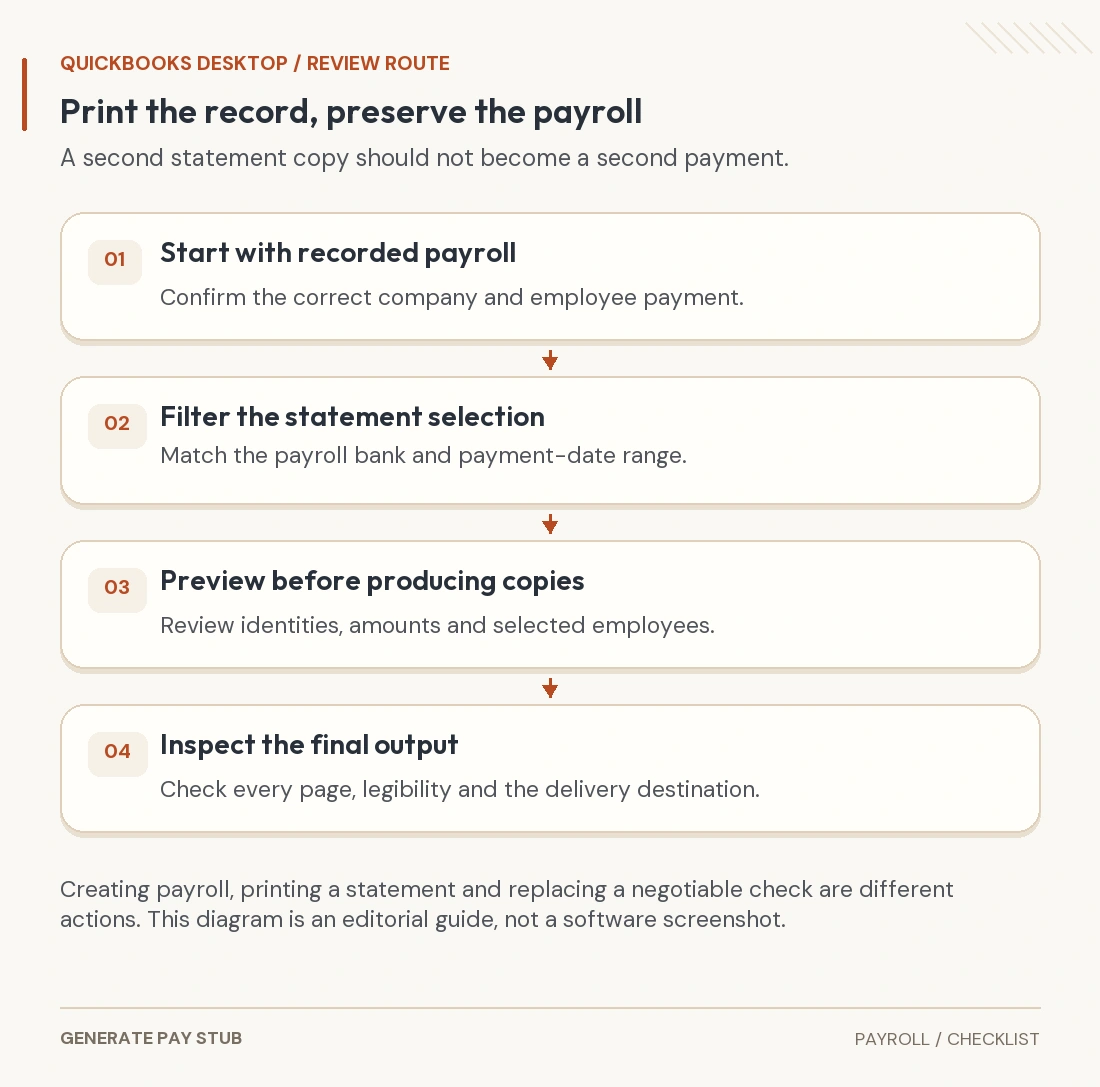
Intuit’s pay-stub emailing guide specifies single-user mode for the documented process. From File → Print Forms → Pay Stubs, choose the payroll bank, payment-date range and employees, then review Preview and select Email. Record the generated password information for the authorized employee.
Continue to Send Forms and inspect the recipient, sender, subject and message before choosing Send Now. Review the attachment-to-person match, not merely the list of names. For a large batch, use your organization’s review controls rather than assuming yesterday’s selection and addresses remain correct.
For example, a fictional queue contains three statements for November6 but only two workers requested another copy. Select the two intended documents, check their respective destinations and leave the third out. Resending a correct statement does not require creating another paycheck.
Our Desktop printing and reprinting guide covers locating the source payroll and reviewing amounts. Resolve wrong wages in that source process before distributing an inconsistent copy.
How does the employee open the protected PDF?
Intuit describes an automatically generated, non-customizable Desktop pay-stub password based on four lowercase surname letters followed by the employee’s last four Social Security digits, with its stated name-handling rules. Use the generated password information and current official instructions for the actual record, especially for short or unusual names.
The PDF password is not the employee’s Intuit account password or the employer’s payroll-service PIN. If a worker asks which credential is needed, first identify whether they are opening an attachment or signing into an account. Avoid asking them to send private identity information in an ordinary email thread to troubleshoot a document.
A protected attachment is one control, not a guarantee that the right person received it. Share opening instructions through an employer-approved separate channel where appropriate. Do not put the full document and its access secret together in a broadly shared message.
The FTC business information-security guide recommends protecting sensitive information, restricting access and using secure transmission. Payroll documents deserve a deliberate delivery process because they can contain personal identifiers and financial information.
A statement can be generated, sent, received and opened at different times
| Stage | Evidence you can review | What remains unconfirmed |
|---|---|---|
| Statement generated | The saved payroll statement and preview | That any email was sent |
| Send action completed | The actual sending result or queue status | That the destination mailbox accepted the message |
| Message reaches the mailbox | Recipient report or available mail evidence | That the correct PDF can be opened |
| Employee opens the right document | Employee confirms identity and pay date | That the bank payment settled or every wage item is correct |
Keep a practical delivery record when your policy calls for it: employee, statement date, confirmed address, sending date and any follow-up. Do not record unnecessary identity secrets in an unrestricted tracking sheet. If a message goes to the wrong recipient, use your organization’s incident process instead of treating a second correctly addressed email as a complete remedy.
Troubleshoot by stage rather than repeatedly resending
No message: verify the address, actual sending result, mailbox filtering and the correct payment selection. Ask the employee to check their own inbox and junk folder; do not ask for access to their personal account.
Message arrives but the attachment fails: confirm it is the intended statement and distinguish a PDF-opening error from an email-account login error. Check the generated opening information through payroll. If QuickBooks cannot produce a PDF at all, use Intuit’s PDF/print troubleshooting guidance for that separate failure.
Workforce record is missing: Intuit’s missing-statement guide identifies service changes, late or backdated payroll and unsent Desktop payroll data as different scenarios. Check the employer’s upload and invitation history instead of resending an unrelated PDF automatically.
Actual pay is missing: investigate the payment separately. An email sent on time can still accompany a returned deposit, an outstanding paper check or another payment issue. Confirm the distribution and settlement facts with payroll.
Common Desktop pay-stub email questions
Does the employee need QuickBooks Desktop to receive the PDF?
The direct-email process supplies a protected PDF. The employee needs the appropriate way to open that file, rather than the employer’s accounting company file.
Can I change the generated attachment password?
Intuit says the documented Desktop pay-stub password is automatically generated and cannot be customized. That differs from managing an employee’s separate online account.
Does email delivery prove compliance with every state’s rules?
No. Determine the statement content, delivery and access requirements that apply to the employment. A software delivery feature does not settle that legal question.
Should I edit the attachment if a worker disputes the amount?
Reconcile the source payroll and use its proper correction workflow. Preserve the relationship between the processed payroll and the statement supplied to the employee.