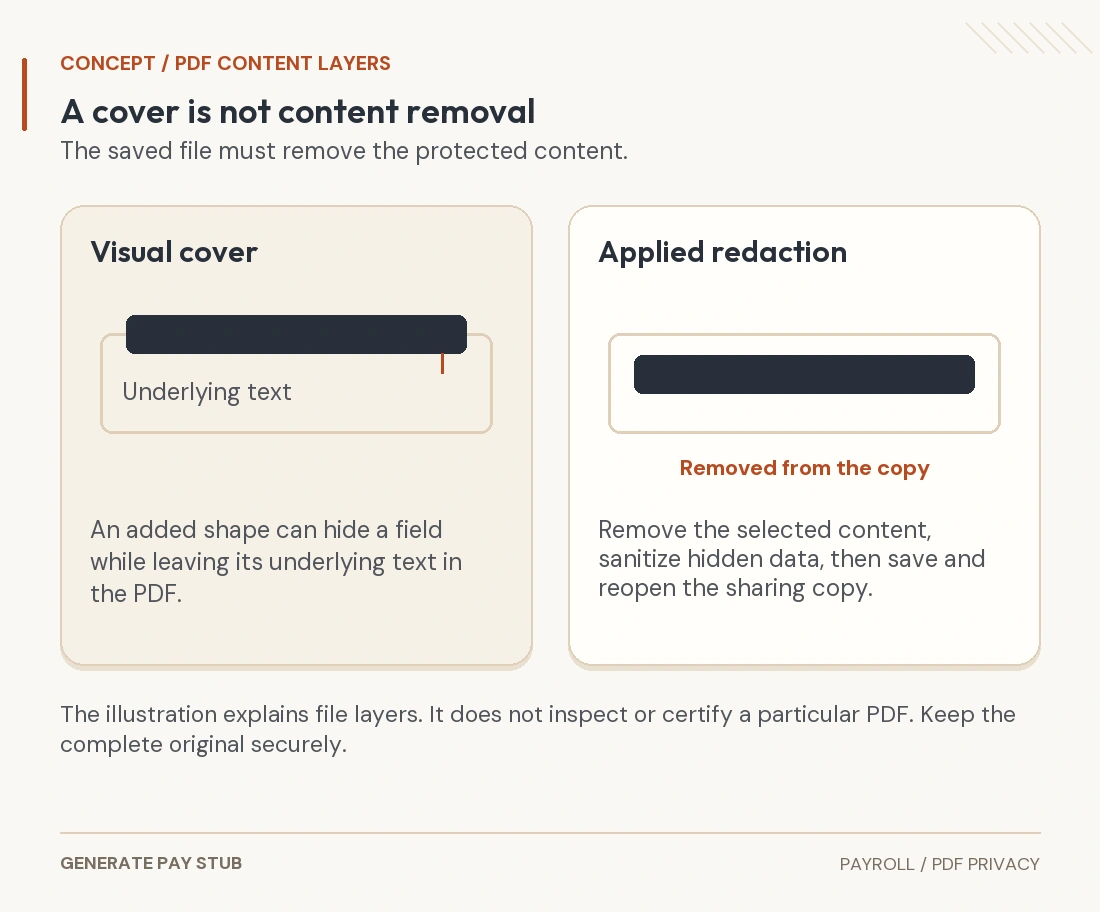
To redact a pay stub PDF safely, first confirm which fields the recipient permits you to remove. Make a separate copy, apply genuine PDF redaction, remove relevant hidden information, then reopen and review the saved file before sharing it. A black rectangle drawn over a number is not a dependable substitute for removing the underlying content.
This guide covers privacy-conscious sharing of legitimate U.S. wage records. It does not authorize concealing income, changing employment details or removing information required for a particular verification. Software features and recipient requirements vary; the examples below use Adobe’s current official documentation, reviewed in November 2026.
Which pay-stub fields can you redact before sharing?
There is no universal approved-redaction list for every lender, landlord, agency or payroll request. Ask the verified recipient what it needs, which identifiers can be obscured, whether all pages are required and which delivery method it accepts. If it needs complete identity data for a lawful process, ask how to submit that data securely rather than silently removing it.
The FTC’s business privacy guide supports limiting sensitive information to legitimate needs and restricting access. Applied to a sharing decision, that means asking why a field is necessary before distributing it. It does not mean that the sender can decide unilaterally what a verification process must accept.
| Information | Practical review | Preserve the record’s meaning |
|---|---|---|
| SSN or bank details | Ask whether masking is permitted and how much the recipient needs | Use the approved secure route if full details are necessary |
| Employee and employer identity | Confirm the identifiers needed to match the record | Do not hide the actual payer or substitute a different person |
| Pay date, pay period and hours | Check the requested evidence window | Keep required dates and work information readable |
| Gross, taxes, deductions, net and YTD | Ask about genuinely unnecessary sensitive deduction labels | Do not hide income changes, balances or financial discrepancies |
| Extra pages or attachments | Check whether unrelated material was included | Do not omit a page required for the review |
For example, a recipient might permit the bank-account field to be removed while requiring the employee name, employer, dates and all wage totals. Follow that specific instruction. The same sharing copy might be unsuitable for a different recipient.
Why can a black box still expose the original number?
A PDF can contain visible page content, searchable text, annotations and other objects. An added rectangle may sit above existing text without deleting it. A screenshot of that page tells you only what was visible at that moment, not whether the saved document retained the underlying material.
Adobe distinguishes redaction from sanitization: the first removes selected visible content, while the second addresses hidden information. Applied and saved redaction is permanent in the resulting copy. That is why the untouched original needs a separate protected location.

Highlighting, changing text color, placing an image above a field or simply renaming the file should not be treated as proof of permanent removal. Likewise, a document password or a restricted sharing link controls access; it does not by itself remove a field from the file opened by an authorized recipient.
How do you apply redaction without changing the original?
- Start with the issued source. Confirm the employee, pay date and complete page count. Save the original securely.
- Create a distinct working copy. Use a name that identifies it as the sharing version without putting an SSN or account number in the filename.
- Use the actual redaction feature. Select only the content the recipient permits you to remove, including repeated appearances.
- Apply the changes. A marked selection awaiting approval is not the finished file.
- Address hidden content. Review the tool’s sanitization options and what they remove.
- Save to a separate final file. Reopen that output and verify it before attaching anything.
In Adobe’s Acrobat Pro workflow, the relevant tool is under All tools, then Redact a PDF. Select the text or image, apply the redaction, review the hidden-information option and save the resulting document. Follow the current interface for your edition; do not assume a similarly named annotation tool performs the same operation.
If an identifier appears multiple times, inspect every occurrence. Adobe’s search-and-redact instructions describe finding words or patterns and marking selected results before applying them. Search is useful, but an identifier inside a page image may need separate visual attention. Do not assume one search string catches variations with spaces, hyphens or a different label.
What hidden PDF information should you review?
Adobe’s sanitization guidance identifies metadata, comments and hidden layers among the information that can remain in a PDF. A document can also contain embedded material that is not part of the page currently visible. Review the tool’s findings rather than checking only the first displayed page.
A scanned page needs careful treatment too. Its appearance can be an image while an OCR text layer makes it searchable. Confirm that the redaction method handles the selected image content and relevant text, not merely a markup drawn over the scan. Adobe provides a separate image-redaction procedure.
If the file is signed, locked or subject to an employer-controlled document process, ask the issuer or recipient for the appropriate sharing route. Editing can affect the document’s status or acceptance. Do not remove protections to force a modification or present an altered copy as an unmodified original.
How should you check the saved redacted pay stub?
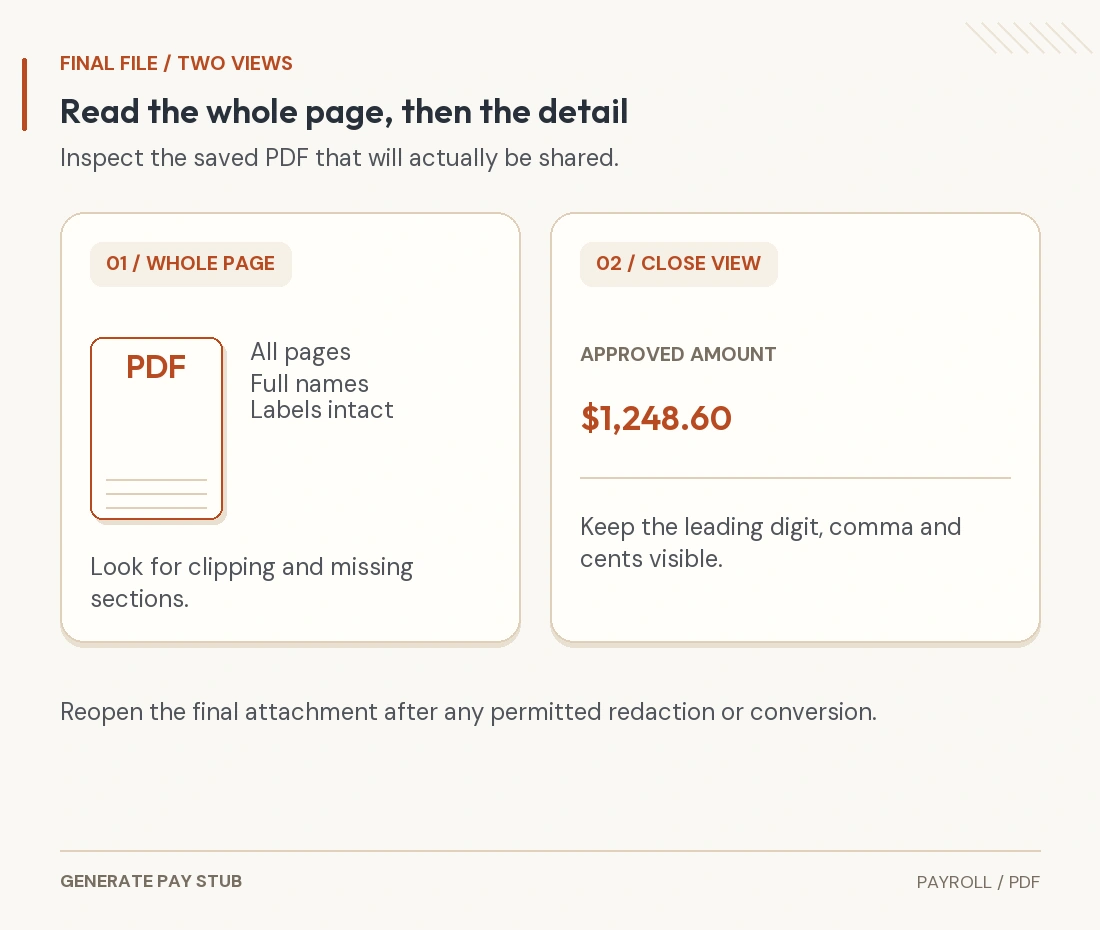
Close the editing session and open the exact final sharing file from its saved location. Inspect all pages at a comfortable reading size. Check the edges of each redaction for leftover digits and confirm that neighboring names, labels, minus signs and amounts remain legible.
Use search and text-selection checks as ways to detect obvious failures: look for the permitted-to-remove identifier in the reopened file and see whether copied text from that area still exposes it. Check alternate formatting when relevant. A successful search result revealing the identifier is a reason to stop and redo the work.
A failed search is not a security certificate. Scanned images may not be searchable, and a basic viewer does not expose every possible embedded object. Review the redaction and sanitization settings, the saved output and the original source together. If you cannot establish that the tool actually removed the intended information, use a trusted document professional or request a suitable issuer-prepared copy.

How do you avoid sending the wrong version?
Open the selected attachment or upload preview before submitting, where the service supports it. Confirm the file belongs to the intended employee and pay date and is the version you just reviewed. A filename ending in “final” is only a label.
Verify the recipient independently. The FTC’s consumer security guidance recommends contacting a business through a known legitimate route instead of trusting unexpected links. A familiar logo in an email does not establish who controls the upload page.
For recurring document handling, the FTC’s Start with Security guide emphasizes reasonable collection, retention and access controls. Choose a trusted tool and review how any cloud service handles uploads before placing payroll documents in it. Keep necessary source records securely; a temporary sharing copy is not a replacement for a records-retention policy.
For the separate presentation review, use checking a pay-stub PDF before delivery. For wage-statement identifiers, see SSN masking rules and privacy. If the earnings themselves are wrong, request a payroll correction instead of treating it as a redaction task.
Common pay-stub redaction questions
Will every landlord or lender accept a redacted stub?
No. Confirm the specific recipient’s requirements before preparing the copy. Acceptance depends on the review and required evidence.
Can I remove a deduction just because it is personal?
Ask first. Do not remove required financial facts or make totals misleading. A permitted redaction should be apparent as a redaction, not disguised as a different payroll record.
Does printing to PDF guarantee that hidden information is gone?
Do not assume it does. Use a documented removal process and inspect the resulting file; a conversion step alone does not certify the outcome.