
If your calculator result is one cent different from a pay stub, rounding is one possible explanation—but it is not a conclusion to assume. First check that you are using the same inputs, the same calculation, and the same point at which the payroll system rounds the result.
This guide explains why the order of rounding matters and how to ask a useful question about a small discrepancy. It does not prescribe a rounding method for your payroll.
Displayed cents can hide extra precision
A money field may display two decimal places even when an intermediate calculation produces more. For example, multiplying a rate by a quantity can produce a fraction of a cent. Whether that fraction is retained for another step or rounded immediately can affect the final result.
There are two separate questions: what amount was calculated, and how much of that amount is displayed? A worksheet that merely hides extra decimal places can look like a worksheet that rounds them, even though later calculations may behave differently.
A one-cent example, step by step
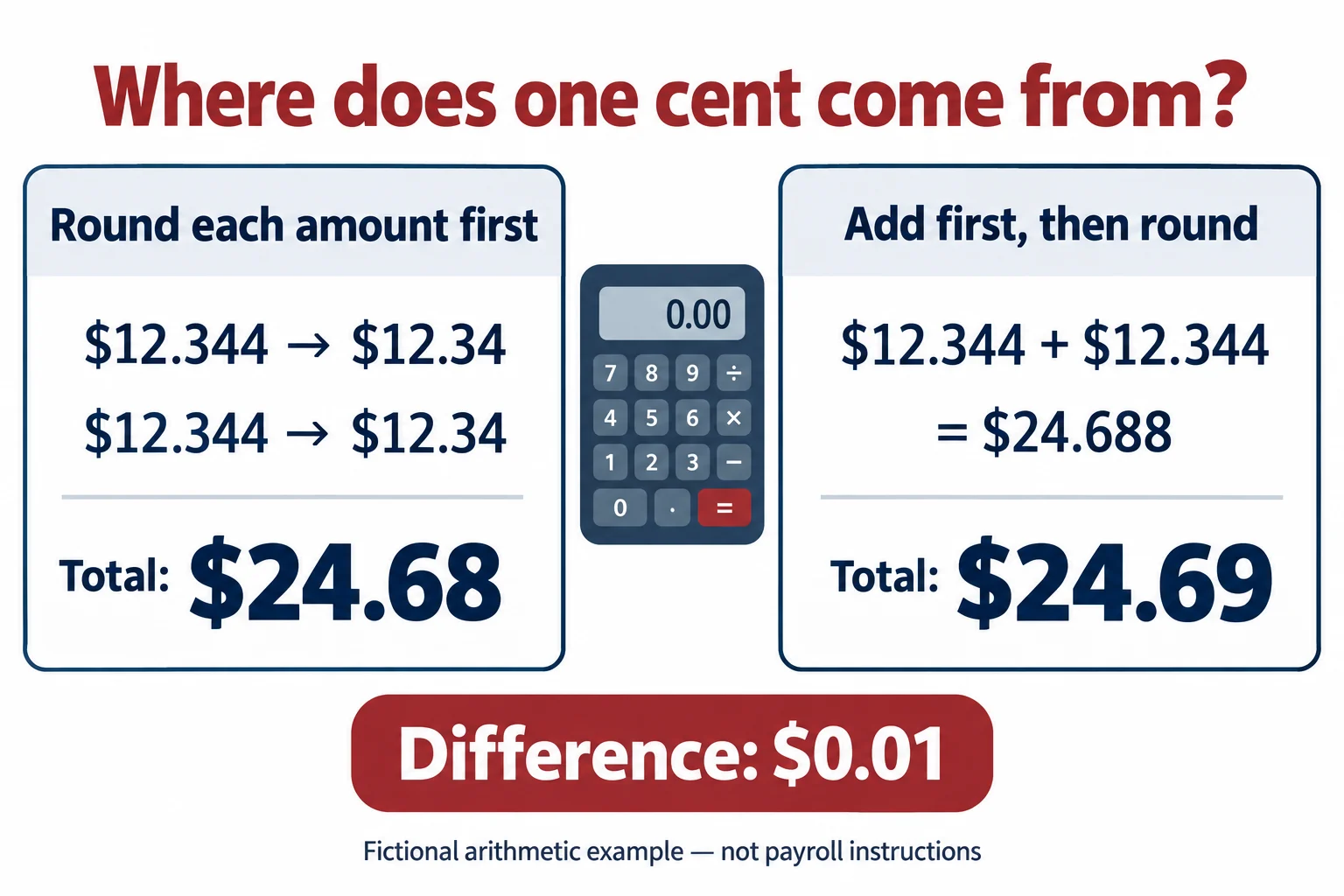
Suppose two fictional intermediate amounts are both $12.344. Use rounding to the nearest cent for this example.
- Round separately: each amount becomes $12.34. Adding $12.34 and $12.34 gives $24.68.
- Add before rounding: $12.344 plus $12.344 gives $24.688. Rounding that result gives $24.69.
The two totals differ by $0.01. Neither route changed the starting amounts; the difference came from when the extra precision was removed.
This demonstration does not mean either route can be chosen freely for employee wages or taxes. The appropriate process depends on the calculation and applicable payroll rules. Ask which process produced the payroll record rather than selecting whichever total you prefer.
Where the IRS recognizes rounding differences
The IRS discusses a specific payroll-tax situation in Publication 15, section 13. Rounding Social Security and Medicare withholding for individual wage payments can produce a small difference when the amounts are compared with calculations on aggregate taxable wages. The IRS calls the relevant reconciliation a fractions-of-cents adjustment.
That guidance concerns employer tax reporting. It is not a blanket explanation for any mismatch on an individual pay stub, and it is not an instruction to change an employee’s pay statement by a cent. A payroll professional should determine whether that reporting adjustment applies.
Before blaming rounding, compare like with like
A small difference can also come from using the wrong input. Work through these checks before deciding you have found a rounding issue:
- Check the payment: use the same employee, pay period, and finalized payroll run.
- Check the base amount: confirm the amount to which the rate applies. Do not assume a displayed gross-pay total is the base for every calculation.
- Check the rate and units: a percentage entered as a whole number, or hours read in the wrong format, creates a different calculation.
- Check the sequence: identify whether amounts are calculated separately, combined, or rounded between steps.
- Check the source version: compare with the final payroll record rather than an earlier worksheet.
Our source-record checklist helps keep the relevant inputs together. If you cannot trace an amount to a record, resolve that gap before trying to explain a difference mathematically.
Ask for the calculation, not just a corrected total
A useful message to payroll identifies the exact line you checked, the amount you used, your calculation, and the result shown on the statement. Then ask where rounding occurs and whether there is precision that the displayed fields do not show.
“I recalculated this deduction using the displayed amount and rate, and my result differs by one cent. Can you confirm the calculation base and the rounding step used for this payment?”
Keep the response with your review notes. If payroll identifies an actual error, follow its correction process. Do not alter an unrelated earning or deduction just to force the final total to match.
When preparing a pay stub on GeneratePayStub.com
Use the payroll information you have verified when preparing a regular pay stub or an enhanced statement. If a generated amount differs from your established payroll record, pause and identify the cause before completing the document.
For a question about the generator’s behavior, contact GeneratePayStub support with a description of the affected field. For a question about the correct payroll or tax treatment, consult the person responsible for payroll.
Finally, distinguish a calculation issue from a display issue. A clipped digit or unclear decimal point calls for a file review; our pay stub PDF checklist covers that separate step.